L3MON — Access Android Devices Remotely

L3MON — Access Android Devices Remotely

L3MON is a remote Android management suite, we can use it to gain access on any android smartphone. In easy words this is a Android RAT (Remote Administrative Tool).

In today’s detailed tutorial we learn how to install & configure L3MON on our Kali Linux system and use it. This l3MON tool has been archived by it’s owner. Seems it will not updated and may not work. We are also closing our support on this tools errors.

Using L3MON we can make an Android APK payload and send it to android device and after installing it on android device we can gain the access of Android device via L3MON’s web based interface, we can send commands from the easy web based interface and execute our commands on targeted devices.

L3mon Kali Linux Control Android device remotely

L3mon have lots of beautiful features they are following:

  • GPS Logging
  • Microphone Recording
  • View Contacts
  • SMS Logs
  • Send SMS
  • Call Logs
  • View Installed Apps
  • View Stub Permissions
  • Live Clipboard Logging
  • Live Notification Logging
  • View WiFi Networks (logs previously seen)
  • File Explorer & Downloader
  • Command Queuing
  • Built In APK Builder

 
Installing L3MON in Kali Linux

We need Java Runtime Environment 8 and nodejs installed in our machine to run L3mon.

First we install the JRE (Java Runtime Environment) on our system by applying following command:

sudo apt-get install nvidia-openjdk-8-jre

This command will install JRE version 8 on our system as shown in following screenshot:
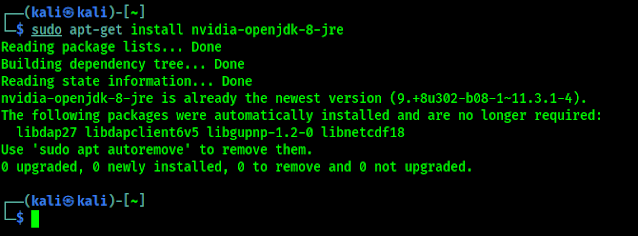
Installing nvidia-openjdk-8-jre on Kali Linux
We already have installed OpenJDK-8-JRE

Then we need to install NodeJs on our system we apply the following commands to download nodejs in our system.

curl -sL https://deb.nodesource.com/setup_13.x | sudo bash -

Then we run following command to install it.

sudo apt-get install -y nodejs
installing nodejs in Kali

Then we install pm2 process manager by using following command:

sudo npm install pm2 -g
Now we are ready to install and configure L3MON.

We download it from it’s GitHub by using git clone command:

wget https://github.com/D3VL/L3MON/releases/download/1.1.2/L3MON-v1.1.2.zip

This command will download L3MON in our system. Now we create a new folder in our Desktop named L3MON and copy the downloaded zip file there.

Then extract it by right clicking on the zip file and choosing “extract here”.

unziping l3mon

Then we open a terminal window and navigate to L3MON in our Desktop by simply using cd command:

cd /Desktop/L3MON

Here we install all the dependencies by using following command:

npm install
It will install the dependencies now as we can see the the following screenshot:
 installing dependencies of l3mon

Let start the server by using following command:

pm2 start index.js
starting the instance

Now we can see our server in our browser http://localhost:22533 there will be a login page as following screenshot:


l3mon login

We create a login for our server here. But we cant login because we did not created a password to login. To create a password we stop our serve by using following command:

pm2 stop index.js

 Now we need to edit maindb.json file using our favorite text editor mousepad.

mousepad maindb.json


Here we edit the username if we want it. But in the password field, we need to give our password’s md5 hash. Means if we fill here the password as plain text, will not work. We must need to put password’s md5 hash.


How to create a md5 hash of a password? Suppose our password is qwerty (This is for an example we shouldn’t choose easy passwords for security reasons). To convert it on md5 we need to use following command in another terminal window.

echo -n "qwerty" | md5sum | cut -d" " -f 1

Here we got the MD5 hash of our password as we can see in the following screenshot.

creating md5 hash

Then we fill our username and password in maindb.json file then save and close this file.

modify and save the maindb.json file

Now we again start the server by using following command :


pm2 start index.js

Then again open our localhost in browser with 22533 port.

As we set our username kali and password qwerty we fill it and click on login.

We are successfully logged in.


Now we are in control. We need to open the APK builder tab.

APK builder

Here we put our IP address (local or public) and leave the port as default and click on build.

Note: If we want to control android device on our local network (same WiFi) then we can use our local IP and to connect devices through internet we need to put our Public IP (Static IP is preferred for a long time use).

After clicking on build we got an error like this.

we got error

We solved this error by configuring JAVA in another terminal by running following command:

update-alternatives --config java

Here we can select Java versions. We need Java version 8 to run L3MON tool. In out case it is on number 2, as we can see in the following screenshot.

Java version 8 selecting on Kali Linux

So we type 2 and hit “Enter”.

Then we restart our running L3MON server by using following command:

pm2 restart all

Bingo, the error goes now the build is ready to download.

l3mon apk download

Now we can download the L3MON.apk in our system, and send it to our targeted device anyway and make a successful installation.

After a successful installation it on targeted device and the phone user tries to open this L3MON will asks all the permission of devices and automatically hide itself from the app drawer.

After this we got the connection with the device. We can check it on our Devices tab.

Now we can control this phone from the manage button. Here in the following screenshot we are in the file manager of the phone. Now we can spy on this phone.

File manager accessing by L3MON
We are in the file manager of victim device

Our downloaded data and recorded audio clips will be saved under assets/webpublic/client_downloads/ directory.

Our discussed method is for local network. To connect a device from internet we prefer to have a static IP address and forward our default port 22533 in our router settings or we can change the default port by changing these lines (inside includes/const.js).

Using this method we can control phones connected in our same network. We also can control devices through internet by using ngrok services. Configuring L3MON on VPS will make it portable and useful.

Disclaimer

Provides no warranty with this software and will not be responsible for any direct or indirect damage caused due to the usage of this tool or this tutorial.
L3MON is built and our article is documented for both Educational and Internal use ONLY
.

Getting any problem during installing or configuring L3MON ? This l3MON tool has been
archived by it’s owner. Seems it will not updated and may not work. We
are also closing our comment support on this tool’s errors.
For more tutorials like this subscribe our newsletter to get updated. Also we post updates on our Twitter and GitHub.

KP AKA Koushik Pal is a Security researcher and specialist focused on educating about Linux for cybersecurity and URL‑masking vulnerabilities. Creator of MaskPhish, a well‑known open‑source bash-based URL‑masking tool. Linux enthusiasts Active speaker, trainer, and advocate for secure web practices.

64 comments

comments user
Anonymous

bro 'im not getting L3MON Page, i were used this http://localhost:22533 '''http://xxxxxx:22533'' , plz help me bro…

comments user
Kali Linux

it should work we have tested it many times. Please check that you followed all the process without any error.

comments user
Unknown

Bro use port number like 4444 like this

comments user
Anonymous

Sir write more article like this

comments user
Kali Linux

There is another tool called HaxRat. We personally give some suggestion to the developer of HaxRat (he is old good friend), then he is planning to move to http from tcp. Then we can host that RAT on any web server. Then it doesn't require special servers with port forwarding. Trust us HaxRat is much more improved version of L3mon.

comments user
Anonymous

Plz help. It says "[PM2][ERROR] Script not found". I have been retrying the process several times now

comments user
Kali Linux

There are some issues with the paths. Please check this for solution

comments user
Anonymous

Thank you

comments user
SK Gokulbarath

gytj

comments user
Anonymous

nice

comments user
Unknown

I port forwarded the port but it still doesn't work are there any more steps I need to take?

comments user
Kali Linux

Did you use your external ip. Is your public ip is fixed ? or dynamic?

comments user
Sumeet Suryawanshi

app installs but it is not shown in devices

comments user
Anonymous

Hello, I did install the APK but my server does not see the device.

comments user
Kali Linux

Turn off "data saver" & "battery saver" on your android phone, then the devices will appear on your server

comments user
Anonymous

I did everything, but at the moment of infecting a device and opening the application. This does not appear in the system

comments user
Kali Linux

You need to be sure on some things.

1. The devices have set permission for the payload app.
2. The target device must not have battery saver activated (Battery saver doesn't allow to run other apps in background).
3. The device connected to network (for local we can use same WiFi for internet we need to forward port and internet connection).

comments user
Anonymous

bro, I too can't access theL3MON page using http://localhost:22533 , how did you solve this to get the login page, please help!

comments user
Kali Linux

Hi, If the default port is not working you can use own custom port. You will find it on L3MON/server/includes/const.js . Here are these lines.

comments user
Erwin Rommel

Hi,
This is what I have done
Step 1 – installed L3MON and am able to access it from localhost:22533
Step 2 – created a NOIP DDN server installed the client and have completed the configuration in my local system. (For e.g. consider giving the name TEST.DDNS.NET)
Step 3 – Completed the port forwarding in the router so I am able to access L3MON local with the address TEST.DDNS.NET:22533

Question 1 – Can I then assume that my port forwarding and network configuration are done properly?
Step 4 – In the APK builder in the IP field I am giving TEST.DDNS.NET and in the port field I am giving 22533 and building the APK downloading the APK

Question 2 – Is this the correct approach ? or does the port have to be 22222
Step 5 – Sending the APK to my own mobile via whatsapp and installing it – giving all permissions to it. Note – My mobile has the latest everything android etc etc. I am still not able to view my mobile in the device list

Question 3 – What among the following might be a potential issue
a. Network or port not configured properly (Please refer to Step 3 I am able to access L3MON browser with TEST.DDNS.NET:22533)
b. Android version issue (I have the latest android)
c. Firewall issues (Will that be the laptop firewall or the android firewall)

I have been banging my head over the internet for sometime now before reaching out to you all amazing people. A few hint or even a path in the right direction will be highly appreciated.

comments user
Unknown

Installed the APK but not showing the device in l3mon manager .
Battery usage ..off
Data usage ..off
But no changes in showing devices.
Plzzz help
…..

comments user
Kali Linux

If the Android device have "data saver" or "battery saver" turn on , then the devices will not appear on your server. Thanks.

comments user
Unknown

I turned off Battery saver and Data saver, and phone and computer are connect same wifi. but my server doesn't see the device. help me

comments user
Kali Linux

We have also noticed errors in l3mon. This tool have not updated in last one year. Please go to the GitHub of L3MON and add an issue. Now it's depend on the developer of this tool. Thanks.

comments user
marc kouame

Hello,
I have difficulties to install and configure L3MON,
I Did all step but I don't get the same results.

comments user
Kali Linux

Can you tell us the error or what is the different?

comments user
Unknown

What is default password of lemone

comments user
Kali Linux

There is no default password. We need to give our password's md5 hash on configuration file of this tool to create our own password. Means if we fill here the password as plain text, will not work. We must need to put password's md5 hash.

How to create a md5 hash of a password?

Please read the full article carefully. We have described everything.

comments user
Warlook

Al compilar el. Apk desde el panel y descargarlo este pesa 59B y no me permite la instalación lo he ensayado con diferentes ip y siguo obteniendo el mismo resultado, sabes que puede estar pasando?

comments user
Kali Linux

El desarrollador de esta herramienta no la actualizó desde hace mucho tiempo.

comments user
Anonymous

There is only one alternative in link group java (providing /usr/bin/java): /usr/lib/jvm/java-11-openjdk-amd64/bin/java
Nothing to configure.

how to solve this ??

comments user
Kali Linux

You need openjdk 8 not 11. If you have installed it properly you need to make it default by using the following command:

sudo update-alternatives –config java

comments user
uzair

hello Sir,Thank you very much,this tutorial help me alot,specially java older version`s help

comments user
Kali Linux

Glad that it helps you.

comments user
uzair

Sir,how i uninstall this from my mobile , plz guide samsung j7

comments user
Anonymous

I have followed all the steps…But my problem is i am not able to login into the home page…Even after entring the correct login credentials…..How to overcome from that problem

comments user
Kali Linux

Remove the directory of l3mon. Actually l3mon isn't installed on your system. It's a script which using other tools. You can uninstall what you installed to run l3mon. Like npm etc. But just deleting the L3MON Directory will work perfectly.

comments user
Kali Linux

Please don't use this tool. It's getting older and problems will be fixed. Because the owner/creator of l3mon put this tool to the archive. It will not be maintained.

comments user
uzair

thanx alot for help,i cant disable this app from my android after flashing my mobile many time,can u post a tutorial plz

comments user
Kali Linux

Can you please join our Telegram group? We might need screenshots of your device to help you thanks.

comments user
Unknown

My localhost worked the first time now it refuses to connect. I tried retrying 3 times and no luck 🙁

comments user
Unknown

Sir which tool do you suggest instead of L3mon. Because L3mon is not working.

comments user
Kali Linux

Try HaxRat. The developer of HaxRat is our friend and he is also in our official telegram group. For any problem you can contact him on our telegram group.

comments user
Anonymous

here is only one alternative in link group java (providing /usr/bin/java): /usr/lib/jvm/java-11-openjdk-amd64/bin/java
Nothing to configure.

I am getting this , i tried install jdk 8 but it says this

Reading package lists… Done
Building dependency tree… Done
Reading state information… Done
Package openjdk-8-jre is not available, but is referred to by another package.
This may mean that the package is missing, has been obsoleted, or
is only available from another source
However the following packages replace it:
nvidia-openjdk-8-jre

E: Package 'openjdk-8-jre' has no installation candidate

and in alternatives , it only shows 1 config.. pls help for the fix

comments user
Kali Linux

Hi, We that updated the part of the article. Now you can easily install openjdk-8-jre. This package provides the openjdk-8 binaries shipped with the NVIDIA CUDA Toolkit, this obsolete version is needed for nvidia-visual-profiler and nvidia-nsight.

comments user
Unknown

http://127.0.0.1:22533/login?e=badLogin ? any help @Kali Linux

comments user
Kali Linux

The Owner of L3mon has archived this L3mon repository. It is no longer gonna be updated. Seems it's payloads will stop working after some time.

comments user
Unknown

There is only one alternative in link group java (providing /usr/bin/java): /usr/lib/jvm/java-11-openjdk-amd64/bin/java
Nothing to configure.

Still don't understand, reading tons of comments and still don't get it..Any tutorials for this ?

comments user
Unknown

Alternatives of l3mon ?

comments user
dakvan

is that possible to transfer Already .apk file installed client, from L3MON database to another L3MON database which installed another PC/VM

comments user
Kali Linux

Every apk file can connect with it's l3mon server because that apk file is created by that server. In your case it is tough to do. We didn't tried it before. Sounds like good idea.

comments user
Anonymous

Installed the APK but not showing the device in l3mon manager .
Battery usage ..off
Data usage ..off
But no changes in showing devices.
Plzzz help

comments user
Kali Linux

Hi, This L3mon tool is not working properly. It is not updated for a long time by the creator. Thanks.

comments user
Anonymous

how to use L3MON in public network

comments user
Anonymous

Same here.. Did U resolve that issue? If so let me know….

comments user
Kali Linux

This repository [L3MON] has been archived by the owner. This tool is not maintained and updated. We should avoid using it.

comments user
Anonymous

is it possible to find any androied mobile phone and track location.los mobiles

comments user
Rick Sanchez

Github repository down

comments user
Anonymous

cannot go through the stage of "wrong java version"

comments user
Anonymous

npm install
npm ERR! code ENOENT
npm ERR! syscall open
npm ERR! path /home/ritikverma/Desktop/L3MON/package.json
npm ERR! errno -2
npm ERR! enoent ENOENT: no such file or directory, open '/home/ritikverma/Desktop/L3MON/package.json'
npm ERR! enoent This is related to npm not being able to find a file.
npm ERR! enoent

npm ERR! A complete log of this run can be found in:
npm ERR! /home/ritikverma/.npm/_logs/2023-03-24T19_42_27_813Z-debug-0.log
i find this problem in my pc

comments user
Anonymous

facing alot trouble of installation of MOBSF on kali.At the end this error will occure.ERROR] Installation Failed!
Please ensure that all the requirements mentioned in documentation are installed before you run setup script.
Scroll up to see any installation errors.

The 'decorator==4.4.2' distribution was not found and is required by the application

comments user
Anonymous

follow each instruction .Another error ERROR: Could not find a version that satisfies the requirement Django>=3.1.5 (from -r requirements.txt (line 1)) (from versions: none)
ERROR: No matching distribution found for Django>=3.1.5 (from -r requirements.txt (line 1))

comments user
Anonymous

do any body has this problem ? i need some help i install everything but still with the same Error

┌──(root💀kali)-[~]
└─# sudo npm install pm2 -g
npm ERR! code ETIMEDOUT
npm ERR! syscall connect
npm ERR! errno ETIMEDOUT
npm ERR! network request to https://registry.npmjs.org/pm2 failed, reason: connect ETIMEDOUT 2606:4700::6810:1523:443
npm ERR! network This is a problem related to network connectivity.
npm ERR! network In most cases you are behind a proxy or have bad network settings.
npm ERR! network
npm ERR! network If you are behind a proxy, please make sure that the
npm ERR! network 'proxy' config is set properly. See: 'npm help config'

npm ERR! A complete log of this run can be found in:
npm ERR! /root/.npm/_logs/2023-05-08T18_18_43_676Z-debug-0.log

comments user
Anonymous

did you fix your problem brother?

Post Comment