Crunch — Custom Wordlist Generator
In this tutorial we are going to learn generating our custom made wordlist with crunch, it uses permutation and combinations to create all possible combinations of the given character set. Crunch comes pre-installed with our Kali Linux environment.
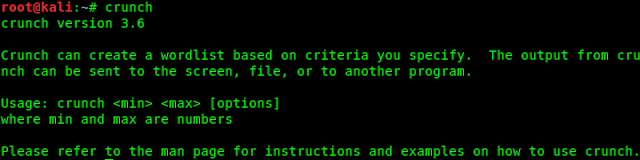
As always we start from the terminal window and type following command to run crunch:
The screenshot of the command is following:

Now we are going to make a wordlist by using following command :
The output of preceding command is following:

In the command the first number (4) is for the minimum length of the possible password we want, and the second number (5) is for the maximum number of possible password we want to generate, and we use all capital characters. We also can use small characters and numbers and symbols, and then -o for output directory and name of the wordlist. As we can see the file size is 70 MB and there are 12338352 possible passwords.
We can use capital letters, small letters, numbers, symbols etc to generate a bigger wordlist. like the following command:
The screenshot of the command is following:





2 comments