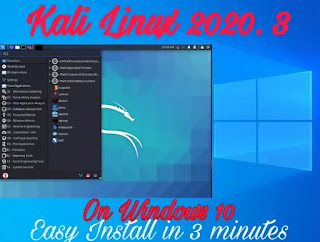
Install Kali Linux 2020.3 on Windows Easily in 3 Minutes Using WLS2 & Win-Kex

Install Kali Linux 2020.3 on Windows Easily in 3 Minutes Using WLS2 & Win-Kex

Installing Kali Linux on Windows 10 doesn’t requires Virtual Machine or VMware software to install it as a virtual OS. Windows 10 updated version have WSL2 feature which is better then it’s previous version of WSL(Windows Subsystem for Linux). WSL2 have a full Linux kernel, that is awesome.

Although WSL utilize a very minimal HyperV virtualization technology to run the Linux kernel virtualization to run Linux on Windows. But we can tell this is better then traditional virtual technology.

Kali linux 2020.3 installation on windows using WSL2 & win-kex

Now we are going to install Kali Linux on our Windows 10 machine. This is going to be the easiest method.

First we need to be sure that we have an updated Windows 10. If not then we should update our Windows 10 PC. We also make sure that we have enabled hyperV on Windows features on/off.

First we need to install WSL2 on our Windows 10.

Installing WSL2 in Windows 10

To install WSL2 e need to search for PowerShell & run the PowerShell as administrator.

running powershell as administrator

Then we run the following command in PowerShell to enable the WSL:

dism.exe /online /enable-feature /featurename:Microsoft-Windows-Subsystem-Linux /all /norestart

Then we run following command to run Virtual Machine program:

dism.exe /online /enable-feature /featurename:VirtualMachinePlatform /all /norestart

The screenshot is following:

powershell commands to enable wsl2 and virtual machine

Now we must need to restart our PC.

After a restart we have to install the kernel packages for WSL2. To do this we need to to to this link and download the packages for x64 machines or we can do it by directly clicking here.

After download we need to run the update package, and finish the installation wizard.

We have successfully setup WSL2 in our Windows 10. To make it default we need to again open PowerShell as administrator and run the following command:

wsl --set-default-version 2 

Install Kali Linux 2020.3

Now we are all set to install Kali Linux. To do this we just need to to the Microsoft store and search for Kali Linux app.


Install it as we do with other Microsoft store apps and it is quite small in size(185 MB).

kali linux on microsoft store

After installation finishes we “Lunch” it. It will take a little bit time on first running.

Then we need to type a username to login on our Kali Linux machine. As the following screenshot we entered our username. We can put whatever we want. Then hit enter.

Now it’s time to set a new password for our user. We type the password but it will be hidden even not showing as *. Hit enter

Then we need to confirm the password.

We got Kali Linux terminal on our Windows 10 machine. Isn’t it easy?

kali linux terminal

What ?? !!

Where is Graphical Interface? This is a terminal only. OK, we know that beginners are not comfortable with the terminal.

Kali Linux GUI using win-kex

Setting up the Graphical interface is also very easy. We just need to type following command on this Kali Linux terminal:

sudo apt update && sudo apt upgrade && sudo apt install kali-win-kex

It will ask the password of Kali. We need to type the password what we have set before and hit the enter button. It may asks for permission we can type “y” for yes and hit enter. Then the installation process will start, after finishing the installation we just need to type kex and hit enter.

kex
win kex

BINGO!

We got Kali Linux’s GUI in our Windows 10. This is easy to set up we can set this in some minutes. This way we can run Kali Linux on our Windows using HyperV virtual system using WSL. We also change the command line interface to GUI (Graphical User Interface) using win-kex. Win-kex released with the latest version of Kali Linux 2020.3.

Liked our tutorial ? Then follow us our blog and follow us on Twitter and Medium. For any query comment down below. We always reply.

KP AKA Koushik Pal is a Security researcher and specialist focused on educating about Linux for cybersecurity and URL‑masking vulnerabilities. Creator of MaskPhish, a well‑known open‑source bash-based URL‑masking tool. Linux enthusiasts Active speaker, trainer, and advocate for secure web practices.

12 comments

comments user
Unknown

I installed following the instruction. however when I use multiple monitor on kex the scaling of the screen is too zoomed on the external monitor and half of the windows is cut off.any fix for this? I have tried to change every setting and resolution but never be able to get it working properly. for actual screen images look my post in https://superuser.com/questions/1586110/win-kexkali-desktop-experience-for-windows-external-monitor-scaling

comments user
Kali Linux

Your problem looks like unusual we also use Kali WSL with kex on a big tv but got no issues of resolution. Okey let us check. Will try to fix your problem. Thanks

comments user
Unknown

yes you are right when I use with just one external monitor there is no problem. The problem arise when my laptop is connected to two external monitor.

comments user
Unknown

I figured the problem guys. it was because on windows display scaling setting. The scaling was set to 125% on windows, so kex was using that scaling hence resulting in a cut off screen even though it does not happen on windows side. so the point is the scaling for the display has to be 100% if you are using external monitor.

Thanks

comments user
ELMcDonald

Getting a tiger vnc error unable to connect to socket: connect refused 10061

comments user
Kali Linux

I also got
the same issue. I tried
kex –kill
with no success. I did
kex –stop
and it works!

comments user
Lloyd

I had that after terminating my first session. Worked ok agian after a reboot though.

comments user
Lloyd

Thanks, really helpful article. Much easier and better than relying on XRDP like in previous builds!

comments user
Kali Linux

Glad that your liked it.Your love and support is our success.

comments user
Elves

kali win kex não está a conectando a ftp.free.er

comments user
Allanur

E: dpkg was interrupted, you must manually run 'sudo dpkg –configure -a' to correct the problem. What should i do?

comments user
Kali Linux

Try the command:
sudo dpkg –configure -a

Post Comment